Configure Data Target QC Checks
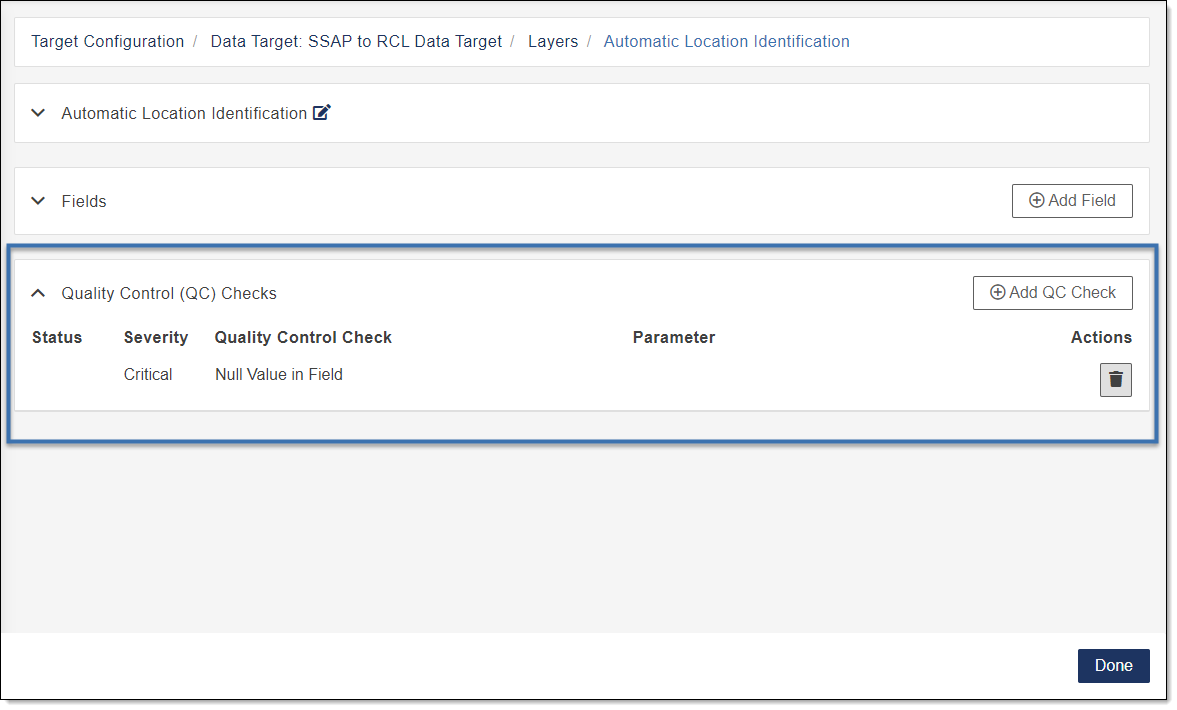
The Configure Quality Control Checks section of Data Target Configuration enables you to add a new QC Quality Control check, edit an existing QC check, or delete a QC check for a given layer or table.
 Add a QC Check to a Layer
Complete the following to add a QC check to a layer.
- In the Navigation Bar, select Account Settings.
- From Account Settings, select Data Target Configuration.
- Locate the Data Target Configuration you want to edit.
-
In the Actions column, select
 to view available actions and select Edit.
The Target Configuration - Layers window opens.
-
Locate the layer you want to edit and select Edit Layer.
The Target Configuration - Layers window opens for the layer selected.
-
Scroll to the Quality Control (QC) Checks section.
-
Expand Quality Control (QC) Checks to view a list of QC Checks for the layer.
-
Click Add QC Check.
-
Click in the Select a Quality Control Check box to view a list of QC checks, click to select.
If the QC check is available for the layer it is added to the Quality Control QC Checks list and configurable settings are shown.
The QC check will show an alert symbol
 until the QC check is configured for the layer.
 -
Configure the settings shown for the selected QC check. Refer to the specific QC check for information on configuring the QC check's parameters, see QC Checks.
-
To save, click Done in the lower right corner.
Edit QC Check Settings for a Data Target Layer
- In the Navigation Bar, select Account Settings.
- From Account Settings, select Data Target Configuration.
- Locate the Data Target Configuration you want to edit.
-
In the Actions column, select
to view available actions and select Edit.The Target Configuration - Layers window opens.
-
Locate the layer you want to edit and select Edit Layer.
The Target Configuration - Layers window opens for the layer selected.
-
Scroll to the Quality Control (QC) Checks section.
-
Expand Quality Control (QC) Checks to view a list of QC Checks for the layer.
-
In the Quality Control Check column, locate the QC check you want to edit and click the row to expand and view settings.
-
Edit the configuration settings as needed for the QC check. Refer to the specific QC check details for information on configuring the QC check's parameters, see QC Checks.
-
To save, click Done in the lower right corner.
Delete a QC Check from a Data Target Layer
- In the Navigation Bar, select Account Settings.
- From Account Settings, select Data Target Configuration.
- Locate the Data Target Configuration you want to edit.
-
In the Actions column, select
to view available actions and select Edit.The Target Configuration - Layers window opens.
-
Locate the layer you want to edit and select Edit Layer.
The Target Configuration - Layers window opens for the layer selected.
-
Scroll to the Quality Control (QC) Checks section.
- Expand Quality Control (QC) Checks to view a list of QC checks for the layer.
- In the Quality Control Check column, locate the QC check you want to delete.
- Click Delete
 .
. - Click Yes, Delete to confirm.