View Job Processing Report
The Job Processing Report is a tool available for users to monitor the performance of GeoComm GIS Geographic Information System. A computer application that involves storing and manipulating electronic maps and related data. Also, mapping software combining spatial information about where places and events are located with data attributes describing those places and events. Data Hub. The report shows a list of your agencies and provides details on the time it takes to run a job on your uploaded data. The report can be viewed in the application or downloaded as a CSV file allowing the ability to customize the view of the data.
The Job Processing Report is organized in alphabetical order with the newest job at the top. These reports are viewable for 12 months at which time they are removed.
Important: The Job Processing Report is not real-time and is updated on an interval schedule. Therefore, you may not see information for your recently uploaded data in the Job Processing Report even though the upload is completed and the data is available in other reports. Once a job finishes, it typically appears in the Job Processing Report within five minutes.
 View and Download a Job Processing Report
Complete the following if you are a primary account administrator to view and/or download the Job Processing Report.
-
In the Navigation Bar, click Analytics.
-
View the Report: In the Job Processing Report card, click View and Download.
When the report has completed processing, the Job Processing Report opens.
See Job Processing Report Content Descriptions for additional details on the information included in the report.
-
Download the Report: While viewing the Job Processing Report, click Download as CSV.
The report is downloaded in CSV format allowing the ability to customize the view of the data.
See Job Processing Report Content Descriptions for additional details on the information included in the report.
Job Processing Report Content Descriptions
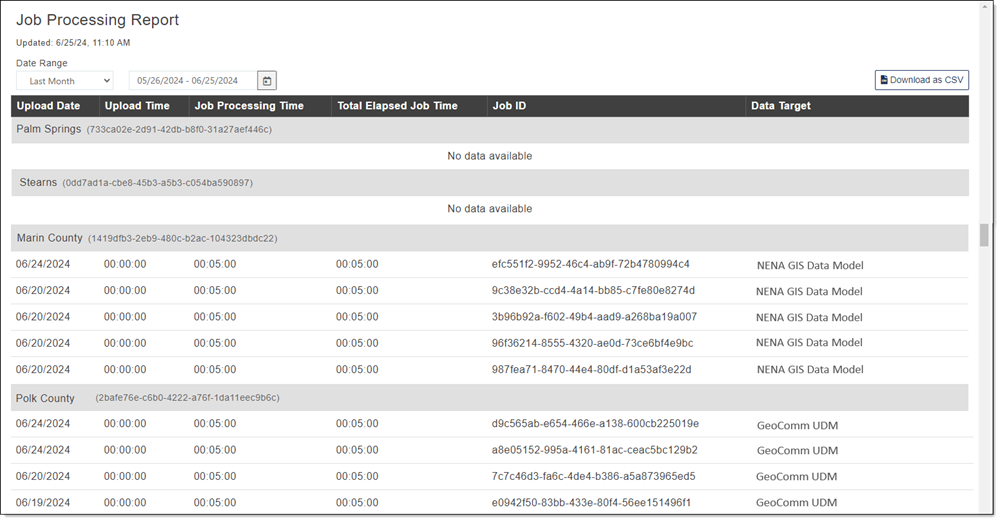
The Job Processing Report includes the following information. If an agency has yet to run a job, No Data Available is shown for that agency.
-
Date Range and Date Picker: The date range for the data shown in the displayed report. The default is Last Month. Click the drop-down to change the date range and/or click the calendar
 to select a date range.
-
Upload Date: The date the data was uploaded to GeoComm GIS Data Hub via the Submit New Data process.
To view the actual run date for the data target, in Analytics, click the Data Target drop-down, select the data target and view the run date on the Data Target Card.
-
Upload Time: The amount of time it took to upload the data once it was submitted.
-
Job Processing Time: The total time it took GeoComm GIS Data Hub to start and run a job using the newly uploaded data.
-
Total Elapsed Job Time: The combined amount of time for uploading and processing the data.
-
Job ID: The ID for the job that was processed.
This information is the same as the Run ID located in Analytics. Click the Data Target drop-down, select the data target and view the Run ID on the Data Target Card.
-
Data Target: The name of the data target.
-
Download as CSV: Enables you to download a copy of the Job Processing Report in CSV format.
Only agencies with data in the Job Processing Report are included in the CSV file.
Important: The upload date in the Job Processing Report is based on the user's local time when the data was uploaded.