Dashboard
The Dashboard enables you to track the health and status of your data at a glance on a single, easy to read dashboard page that outlines critical and warning level reporting. These reports allow you to identify critical errors that will prevent your GIS Geographic Information System. A computer application that involves storing and manipulating electronic maps and related data. Also, mapping software combining spatial information about where places and events are located with data attributes describing those places and events. data exports from being processed and to identify, review, and prioritize items that may impact various systems so they can be corrected.
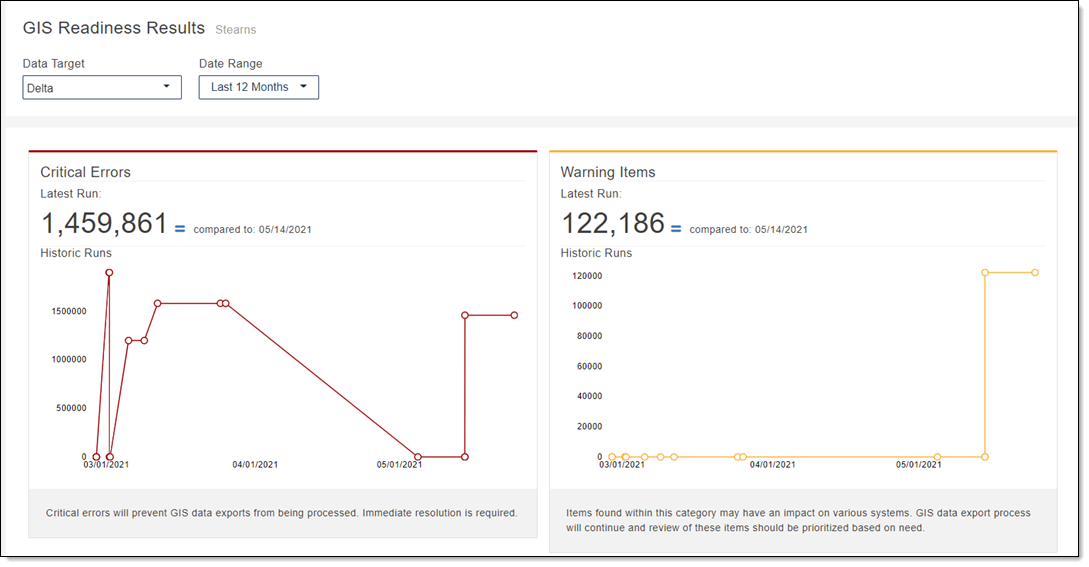
 Parts of the Dashboard Results Graphs
The Dashboard results graphs provide a quick view of your GIS Readiness by identifying Critical Errors and Warning Items for a selected Data Target and the time selected in the Date Range.
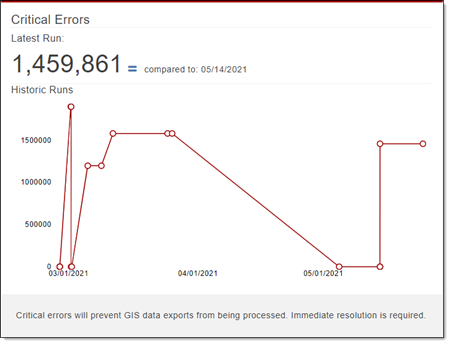
The Dashboard graphs consist of the following parts.
-
Latest Run: Provides the difference between the critical errors or warning count from the most recent run and the immediate previous run.
-
 Equal Sign: Identifies that the comparison number is the same as the last time a run was completed.
 -
 Up Arrow: Identifies when the comparison number is larger than the last time a run was completed.
 -
 Down Arrow: Identifies when the comparison number is smaller than the last time a run was completed.
-
-
Historic Runs: Provides a graph of the critical errors and warning counts reported for the selected Data Target and the time selected in the Date Range.
-
X Axis: The date of run.
-
Y Axis: The count of errors or warnings reported.
View GIS Readiness Results from the Dashboard
- In the Navigation Bar, select Dashboard.
- In the GIS Readiness Results page, click in the Data Target box to select a data target.
-
In the GIS Readiness Results page, click in the Date Range box to select a date range.
Results can be generated for jobs ran within one calendar year (365 days).
- The GIS Readiness Results page updates with results of the Critical Errors and Warning Items for the selected Data Target and the time selected in the Date Range.
-
To view the number of errors or warning items for a historic data run date, hold your mouse over one of the points in the graph.
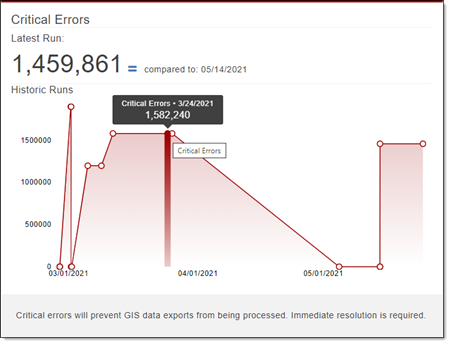
Errors or warnings are viewable in Analytics so you can determine corrective action, see View GIS Data Summary and Fallout Reports.
-
Select a new Data Target or Date Range to view other results.
View Errors and Warnings for your GIS Readiness Results
To view errors and warnings for your GIS Readiness Results so corrective action can be taken, see View GIS Data Summary and Fallout Reports.