Layer and Field Mapping
Layer and Field Mapping allows you to view and field map your source data to your selected data target. Target fields are assigned a status to identify which fields need to be mapped prior to submitting your data for processing. When a source layer is missing data or requires changes due to a recent data upload, the source layer is red, and the status shows as an alert or a warning.
Important: Prior to processing your data target you must map the layers and required fields in your data to the data target. When mapping layers, only compatible field types can be selected.
Important: When mapping the layers be extremely careful not to map a special Esri Environmental Systems Research Institute, Inc. A company that designs and develops GIS technology. data type, these data types are not supported for field and layer mapping. See Submit New Data for additional details.
Note: The following ArcGIS Pro fields can be inputted into GIS Geographic Information System. A computer application that involves storing and manipulating electronic maps and related data. Also, mapping software combining spatial information about where places and events are located with data attributes describing those places and events. Data Hub, however, the fields currently cannot be exported. The fields include: Big Integer, Date Only, Time Only, and Timestamp Offset. For additional information see Using ArcGIS Pro Fields in GIS Data Hub.
 Layer and Field Mapping Workspace
The Layers and Field Mapping workspace consists of the following sections.
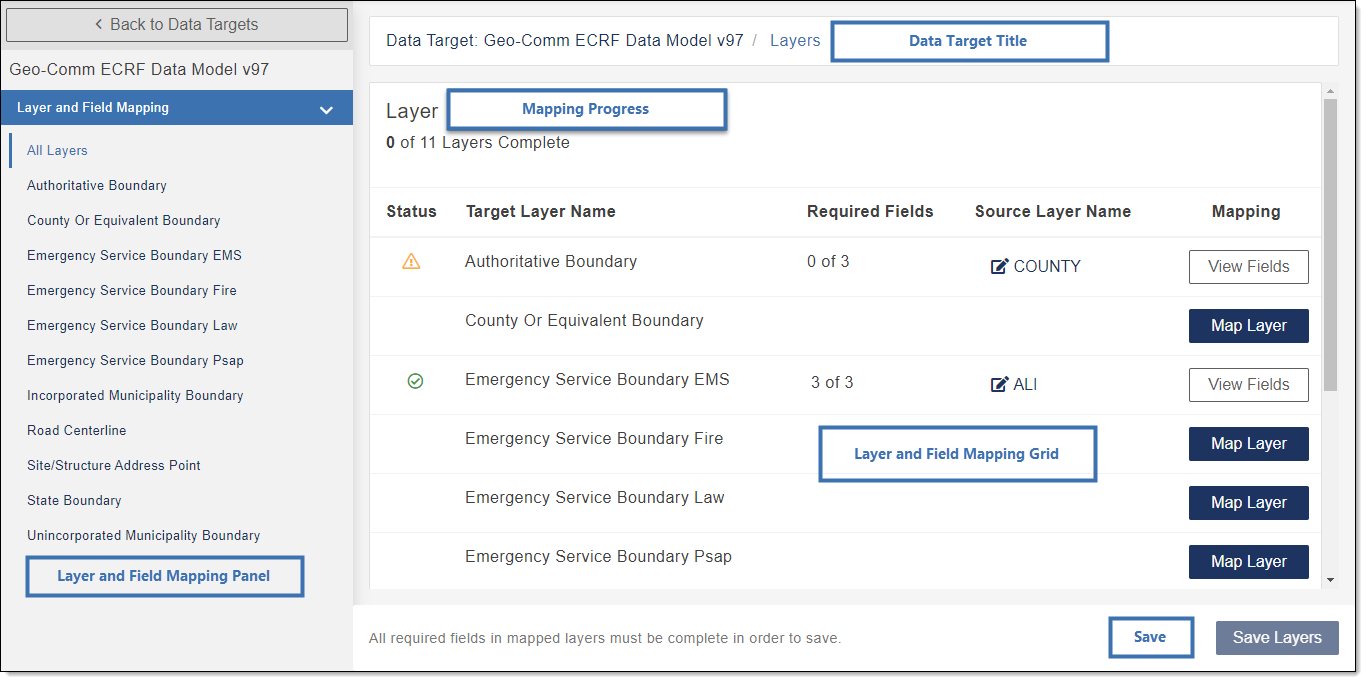
- Layer and Field Mapping Panel: The navigation bar in the Layer and Field Mapping Panel displays a list of the layers for the selected data target. Clicking a layer opens the field mapping page.
- Data Target Title: The title provides the name of the data target you are configuring.
- Mapping Progress: Shows the number of total layers in the data target and the number of layers that are mapped.
-
Layer and Field Mapping Grid: The grid consists of the following sections.
-
Status Provides the status for a layer.
Status Descriptions
-
 Success: The field is successfully mapped.
 -
 Alert: There are required field changes detected.
 -
 Warning: There is a source layer missing.
-
- Target Layer Name: Identifies the layer within the application that is associated with the needed output.
- Required Fields: Shows the number of required fields and how many of those fields are mapped.
- Source Layer Name: Identifies the layer name from the customer's uploaded source data.
- Mapping: The mapping function identifies which layers are not mapped and provides a Map Layer link to enable you to map the layer. Mapping also provides a View Fields link where you can view, edit and map the fields for the layer.
-
-
Save Layers: Changes made to the map layers A group of map files that lie on top of one another, similar to transparancies to create a map. and fields are saved and the Data Target Card is updated.
View Layers in Your Data
- In the Navigation Bar, select Data Targets.
- Locate the Data Target Card whose map layer(s) you want to view.
-
Click Layer and Field Mapping.
The Layer configuration window opens showing all layers in the Layer and Field Mapping navigation bar and grid.
Map Your Data Layers
Map Layers in new or updated data that is submitted must be mapped prior to running the data through GIS Data Hub. See Map Your Data Layers.
View and Edit Target Layer Fields
Required target layer fields in new or updated data that is submitted must be mapped to a source layer prior to running the data through GIS Data Hub. See View and Edit Target Layer Fields.
Edit a Source Layer
- In the Navigation Bar, select Data Targets.
- Locate the Data Target Card whose source layer you want to edit.
-
Click Layer and Field Mapping.
The Layer configuration window opens.
- In the Target Layer Name column, locate the target layer whose source layer you want to edit.
-
In the Source Layer Name column, click the source layer name.
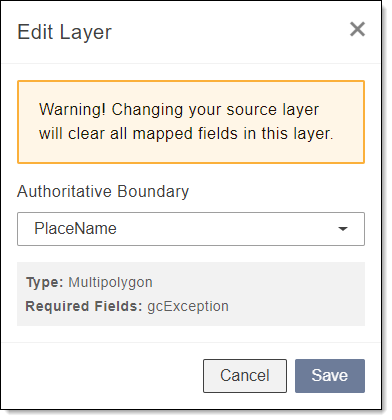
The Edit Layer pop-up opens displaying the target layer name, type of map layer, and required fields.
-
Under the source layer name, expand the drop-down and select a source data.
Changing the source layer clears all mapped fields for the layer.
- Click Save.