Map Your Data Layers
- In the Navigation Bar, select Data Targets.
- Locate the Data Target Card whose map layer you want to edit.
-
Click Layer and Field Mapping.
The Layer configuration window opens.
- In the Target Layer Name column, locate the target layer whose map layer you want to edit.
-
In the Mapping column, click the Map Layer.
The Map Layer pop-up opens displaying the target layer name, type of map layer, and required fields.
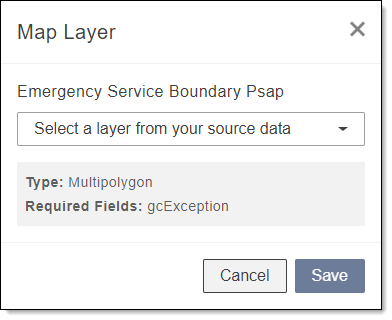
- In the Selected a layer from your source data box, expand the drop-down and select a layer from your source data that the target layer should be mapped to.
-
Click Save.
The target layer fields mapping page opens. All fields flagged as required must be mapped before continuing.
- To map a field, click a field name.
-
Click in the Select a field from your data or insert text box and complete one of the following.
-
Select a Source Field: Select a source field to map the target field to and view the description in the center of the row.
When adding a date, use the date picker that appears when the field is selected.
-
Insert Text: In the Select a field from your data or insert text box, type text that meets the Type (e.g., Number, Date) and Max Characters requirements in the center column. Click Insert as Text.
Note: ArcGIS Pro fields, Big Integer, Date Only, Time Only, and Timestamp Offset, can be inputted into GIS Geographic Information System. A computer application that involves storing and manipulating electronic maps and related data. Also, mapping software combining spatial information about where places and events are located with data attributes describing those places and events. Data Hub but cannot be exported. For additional details, see Using ArcGIS Pro Fields in GIS Data Hub.
-
- To map the target field to another source field, expand the Add another field drop-down and repeat the Select a Field or Insert Text step above.
- (Optional) If multiple fields are mapped, by default, the fields are separated with a space. To remove the space, click the checkmark in the Add space between fields check box.
-
To continue to the next field, click Next Field.
The center column in the row is updated with the selection and a green checkmark appears before the field name indicating complete.
-
Click Done.
The field mapping page closes and you return to the layer mapping page.
If you have not finished mapping all required fields and select Done, changes made are saved, but layer is not complete until all required fields are mapped.
-
Repeat to map additional map layers A group of map files that lie on top of one another, similar to transparancies to create a map. and fields.
-
When finished, click Save Layers.
Note: At least one layer and all required fields must be mapped before saving layers.
Tip: To open the Map Layer pop-up for unmapped layers, click the layer in the Layer and Field Mapping navigation bar.
 Using ArcGIS Pro Fields in GIS Data Hub
When using ArcGIS Pro, Big Integer, Date Only, Time Only, and Timestamp Offset fields can be inputted into GIS Data Hub, however, the fields currently cannot be exported.
When using these new fields, data is copied from source to target as follows:
-
Big Integer: Big Integer fields, when mapped to Integer fields, are copied in their entirety as long as they are less than or equal to 32 bits. If the Big Integer value is over 32 bits, they are converted to 0 to alert you that the field could not be fully transcribed.
-
Date Only: Date Only fields, when mapped to Date/Time fields, retain the date value only.
-
Time Only: Time Only fields, when mapped to Date/Time fields, retain the time value from the source data, while populating the data portion with a default date of 1970-01-01. Note that if the conversion fails, the field populates with a default value of: 1970-01-01 00:00:00+00.
-
Timestamp Offset: Timestamp Offset fields, when mapped to Date/Time fields, retain the date and time values from the source data. Note that the Coordinated Universal Time (UTC) data is not retained.