Explore the Workspace
The GIS Geographic Information System. A computer application that involves storing and manipulating electronic maps and related data. Also, mapping software combining spatial information about where places and events are located with data attributes describing those places and events. Data Hub workspace includes functionality to submit and upload new mapdata files for processing, view recent uploads, user information, the primary accounts and agency you are working with, and a link to view on-line help.
Note: Your permissions and role determine what functionality you have access to when using the application.
The application's workspace consists of the following sections.
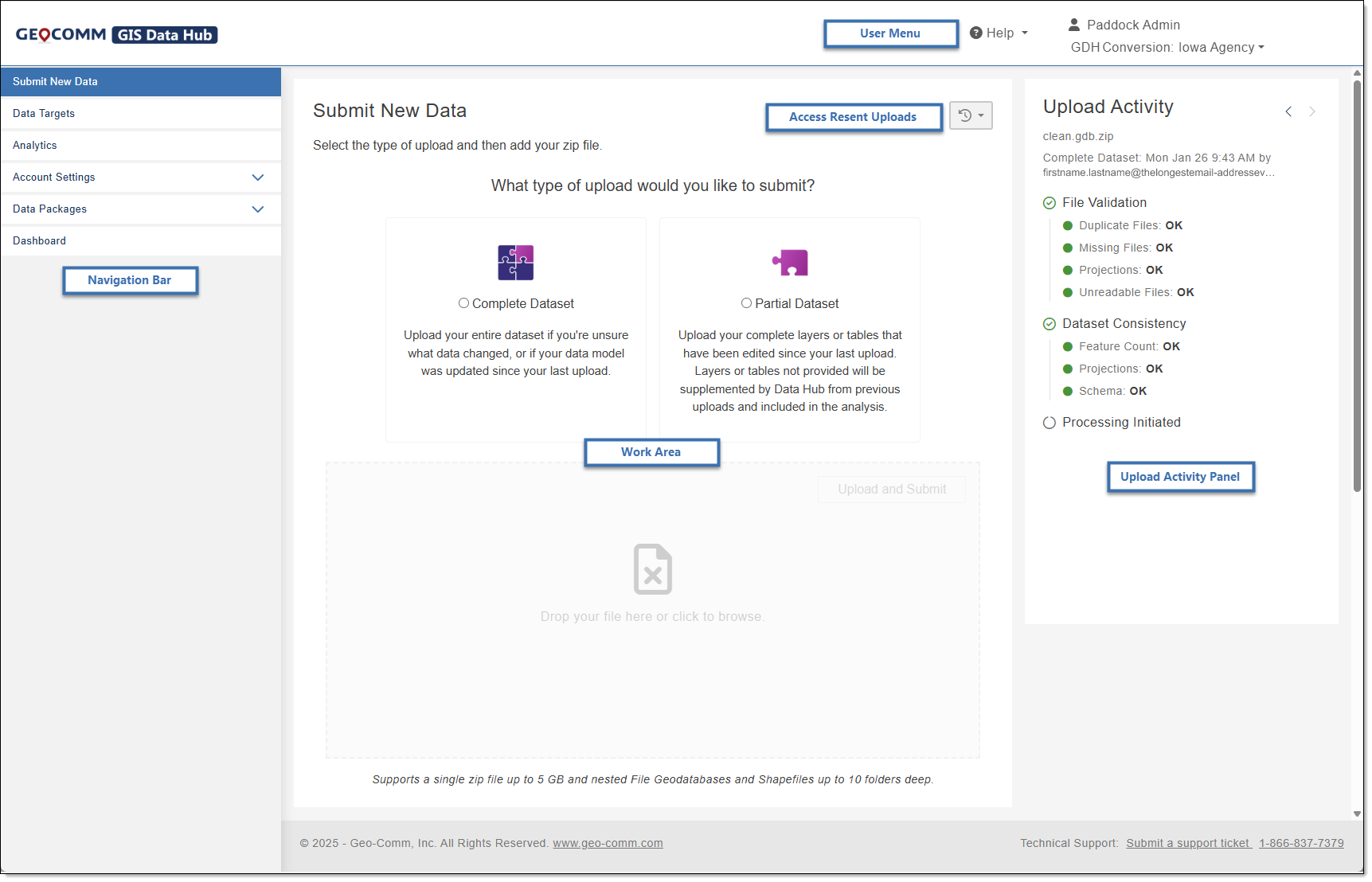
- Access Recent Uploads: Use Access Recent Uploads to view a list of your most recent four uploads. Your files include both full or partial uploads and are available to download regardless if your upload processed successfully or failed to better assist in troubleshooting. For more information, see Download Source Data Files.
-
Navigation Bar: Use the navigation bar to navigate within the application and select functions for submitting new data, working with your data targets to map data layers and fields, viewing quality control check GIS Summary and Fallout reports or Primary Account Reports, manage account setting and data packages, and view critical errors and warnings for your data targets using the Dashboard.
-
User Menu: From the User Menu you can view user information, identify which primary account and agency you are working with, switch agencies, manage agencies, access user help, and view application information such as version and date last updated. Use the User Menu drop-down to log out of the application.
-
Upload Activity Pane: Use the Upload Activity pane to view the status of your upload. The Upload Activity pane provides an upload summary with basic information and processing activity statuses for your upload including if your job started automatically or if items require further action. For more information, see View Upload Activity.
-
The Work Area changes as you select different features in the Navigation Bar. In the image above, Submit New Data is selected and the Submit New Data page is displayed.