View Upload Activity
When a complete or partial dataset is submitted, the top of the Upload Activity pane updates automatically with the upload summary. The Upload Activity pane provides a visual resource to view real-time status. It provides feedback throughout the upload process to inform you if your upload will start your job automatically or if manual steps are required. Once populated, the Upload Activity pane displays the last 4 uploads for an agency.
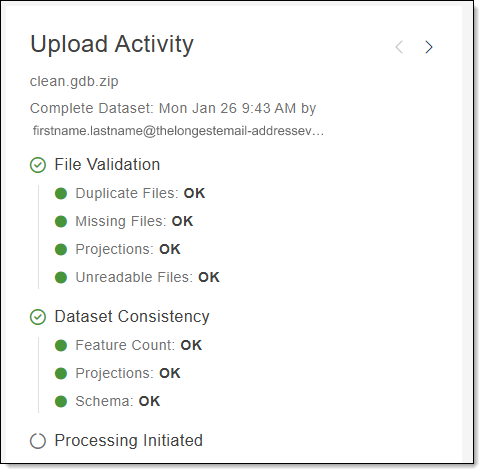
The Upload Activity pane includes the following sections and uses color coding for easy visualization of your upload as it processes (green = pass, yellow = warnings, and red = failure). The information below describes each section.
-
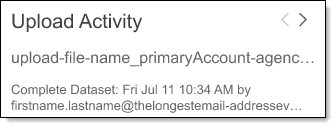
Upload Summary: Provides basic information for the upload including zip file name, upload type, upload date and time (in your local time), and the submitter's username. Use the scroll arrows to view information for the last 4 uploads, when available.
-
File Validation: When an upload is received, the data must be inspected to ensure no readability issues exist before processing can start. File Validation checks confirm the upload contains all the information necessary to process your job. Checks validate that feature classes have associated projections, scan for corrupt files, duplicated file names, and missing files. The file validation indicators alert you if any portion(s) do not pass.
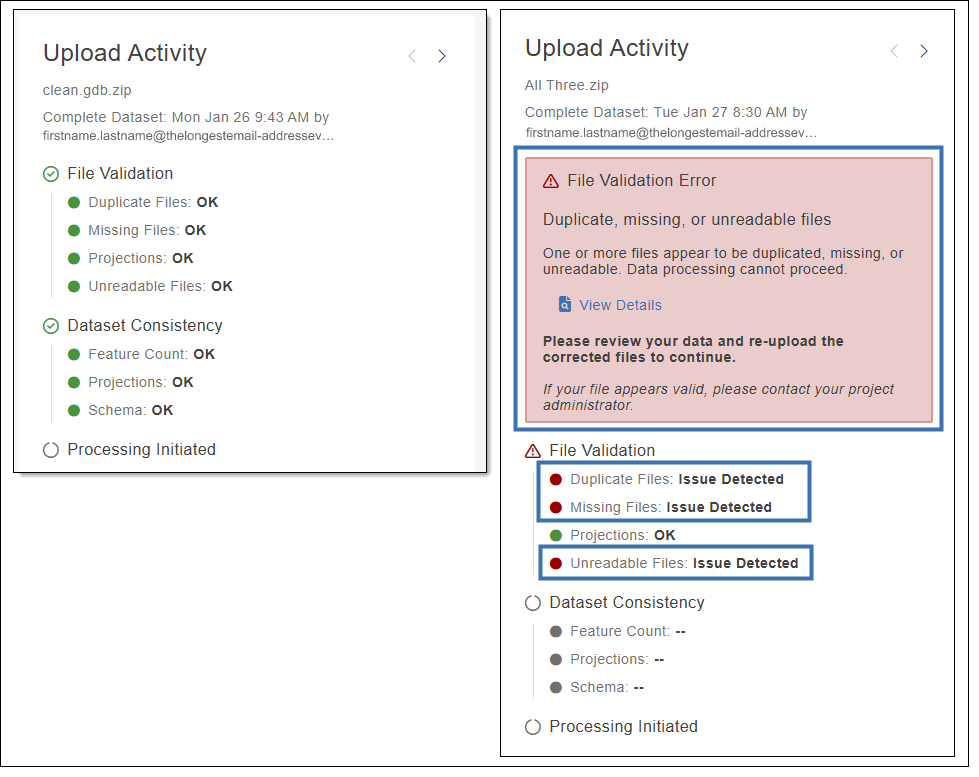
When the uploaded data begins processing, the file validation indicators—duplicate files, missing files, projections, and unreadable files—are gray. As the file validation process progresses, each indicator, as described below, updates its color to reflect the current status, see Processing Status Colors and Symbols.
Note that if the file validation logic encounters an error, the file validation indicator circle that encountered the error changes to dark gray.
-
Duplicate Files: Identifies where duplicate files exist in the uploaded dataset.
-
Missing Files: Identifies where missing files exist in the uploaded dataset.
-
Projections: Identifies where invalid projection files exist in the uploaded dataset.
-
Unreadable Files: Identifies when files exist in the uploaded dataset that are not readable.
If the upload passes all checks, the indicators are green and a green checkmark is shown by File Validation and processing continues.
If the upload fails, each indicator is updated to reflect if it passed or failed, and a red triangle is shown by the File Validation process section. When errors are detected, they must be corrected before retrying to upload your data. To assist with this process, a File Validation Error box appears with a link to view additional information for the errors(s) detected.
 File Validation Errors
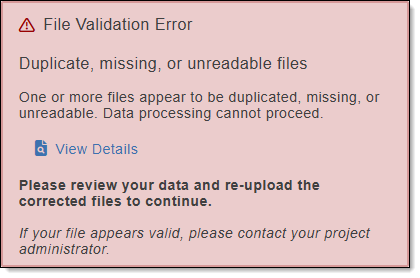
The File Validation Errors box is shown when the upload needs to be reviewed due to errors found when verifying the dataset. If available, a link is provided to view the errors that were located. File Validation Errors include the following:
-
Missing, Unreadable, or Duplicate Files: The dataset that was uploaded has one or more files that are duplicated, missing, or are unreadable. When these files are identified, make sure all required files are included, have unique names, and use a supported format before trying again.
-
Missing or Unsupported Projection: The dataset that was uploaded is missing a projection or contains an unsupported projection. When this happens, features are unable to be analyzed and the data needs to be corrected before trying again.
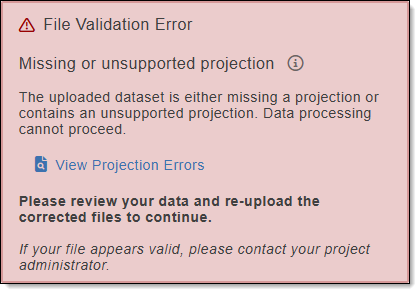
Note that the coordinate reference system (CRS) defines how spatial data is projected on the Earth's surface. A missing or unsupported CRS prevents features from being analyzed correctly.
To view a summary of the errors found for your data, click the link to open a dialog box. The dialog box provides a categorized summary of the errors located in your data that need to be corrected. Click
 to expand or
  to collapse each section.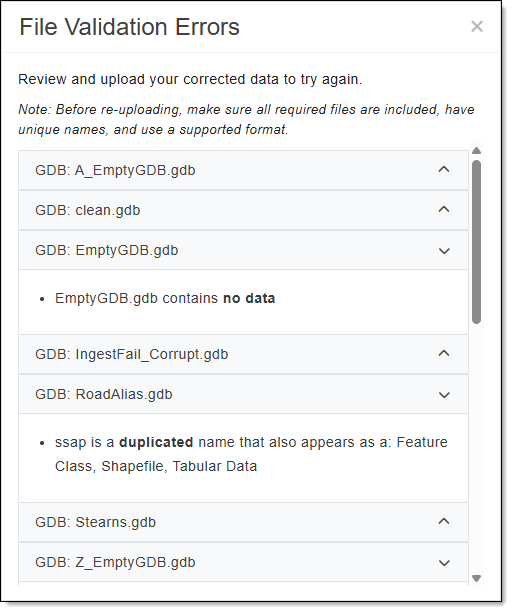
-
-
Data Consistency: When an upload is received and file validation passes, GIS Geographic Information System. A computer application that involves storing and manipulating electronic maps and related data. Also, mapping software combining spatial information about where places and events are located with data attributes describing those places and events. Data Hub compares your current upload to the previous successful upload to identify changes as described in the data consistency indicators below.
When the uploaded data begins processing, these data consistency indicators—feature count, projections, and schema—are gray. As the validation process progresses, each indicator updates its color to reflect the current status, see Processing Status Colors and Symbols.
Note that if the upload fails, the progress icon stops and the data consistency indicator circles change to dark gray.
-
Feature Count: Compares feature counts to your previous upload and flags when the counts from one layer changed by more than the designated percentage. This is set to 20 percent by default and is customizable by agency.
For example, if the PSAP Public Safety Answering Point. A set of call takers authorized by a governing body and operating under common management which receives 9-1-1 calls and asynchronous event notifications for a defined geographic area and processes those calls and events according to a specified operational policy. layer had 10 polygons last upload, but now contains 20 polygons, this change is over 20 percent and would flag for review.
-
Projections: Compares projections from your current and previous upload. Projection changes to source data may impact spatial alignment and snapping, causing potential changes to quality control check fallouts and export data.
-
Schema: Compares changes in dataset structure to your previous upload. Searches for modified layer and field names, field types, and lengths.
This dataset consistency process allows you to identify if notable changes were intentional before proceeding with job execution.
When the data consistency indicator is a yellow flag, the upload passed file validation, however, changes were found that require your review. When a change is detected, an Inconsistent Data Warning box appears with a link to view additional information for the change(s) detected.
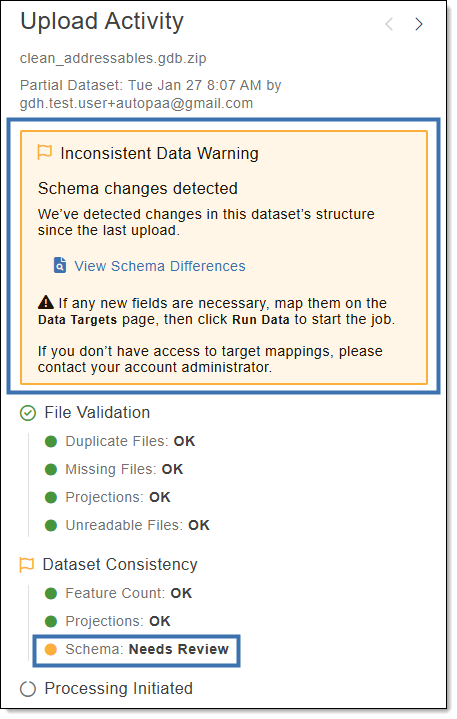 Inconsistent Data Warnings and Errors
The Inconsistent Data Warning is shown when the upload needs to be reviewed or the Inconsistent Data Error box is shown when the upload has failed and must be uploaded again. If available, a link is provided to view the identified differences when verifying the upload. Inconsistent Data Warnings and Errors include the following:
-
View Schema Differences: Schema differences include changes located in the dataset's structure since the last upload. When the link is clicked, a dialog box opens providing a list of schema differences that include: added and removed layers, added and removed fields, and modified fields.
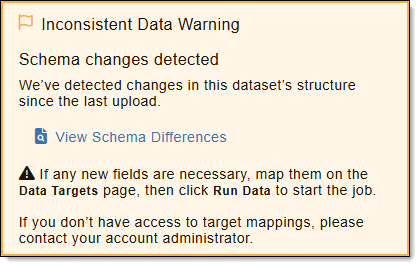
Note that if any new fields are necessary, you must first map them before manually starting your job(s). See Layer and Field Mapping. If this change is unexpected, upload a new dataset.
Partial Dataset uploads should not include any schema changes. If a partial dataset was uploaded with schema changes, an Inconsistent Data Error box is shown with a link to view the schema differences.
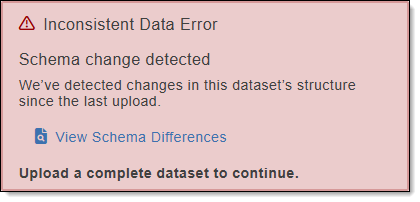
When this error is shown, you cannot run your data target or upload another partial dataset until a complete dataset is uploaded.
-
View Feature Count Differences: Feature count differences are located by comparing layers and tables that existed in the previous successful upload to the current upload and identifying any changes of more than 20 percent. When the link is clicked, the differences included in the dialog box are: previous feature count, current feature count, percentage of change, and feature count change.
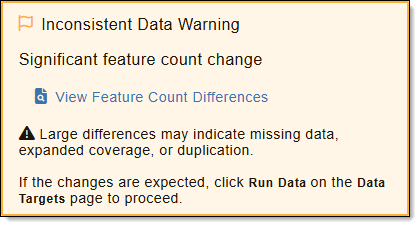
When this warning is shown, upload a new dataset if this change is unexpected or accept the change by manually starting your job(s). To manually run your job(s), see Enable and Run Data Targets.
Note: The threshold for change detection is determined by your administrator. The default is 20 percent, however this percentage may vary by agency.
-
Projection Change Detected: When projection changes are detected from your previous successful upload, a warning alerts you that there are differences and provides information on the projection change that was identified. When the link is clicked, a dialog box opens providing a list of projection differences that include: feature class or Shapefile The shapefile format (.shp) is a popular geospatial vector data format for geographic information system (GIS) software. It is developed and regulated by Esri as a (mostly) open specification for data interoperability among Esri and other GIS software products. name, previous projection, and current projection information.
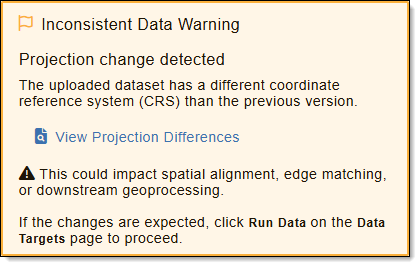
When this warning is shown, upload a new dataset if this change is unexpected or accept the change by manually starting your job(s). To run your job(s), see Enable and Run Data Targets.
To view a summary of the differences found for your data, click the link to open a dialog box. The dialog box provides a categorized summary of the differences in your data. Click
to expand or to collapse each section. When applicable, the plus or minus signs by each section indicate if the data differences were an increase, decrease, or if modifications were made from your last successful data upload. The example that follows shows a summary of the Schema Differences dialog box.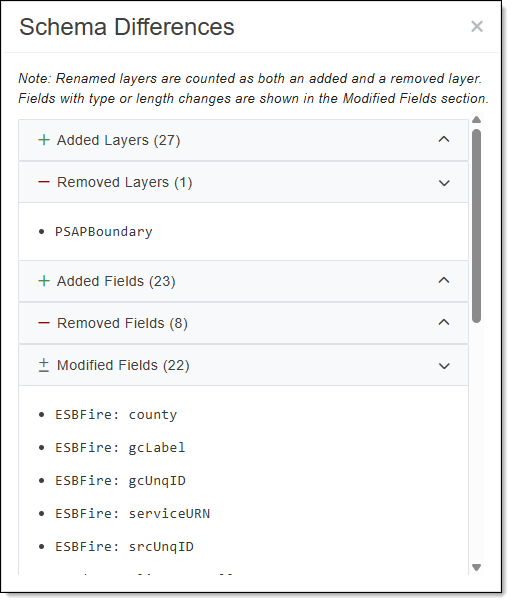
-
-
Processing Initiated: Processing Initiated provides a real-time visual on the status of automatic job runs for enabled data targets. As the uploaded data is being validated, Processing Initiated updates as follows:
-
In Progress: A spinning wheel indicating the upload is processing.
-
Green Checkmark: All verification checks passed and all jobs for enabled data targets have automatically started processing.
-
Yellow Flag: This upload will not automatically run all jobs. Changes were found that require your review as well as manual steps to start your job(s). To run your job(s), see Enable and Run Data Targets.
- Not Applied: Identified as a open gray circle
 , indicates that a job run was not attempted due to either of the following:
- A File Validation failure. Upload a correct dataset and try again.
- No enabled data targets found. Enable a data target to allow an automatic job run with your next upload.
-
Processing Status Colors and Symbols
As the upload processes, different indicators let you know the status using the following colors and symbols.
| Symbols | Descriptions of When Used | |
|---|---|---|

|
In Progress | All Sections: A spinning wheel indicating the upload is processing. |

|
Green Checkmark |
File Validation: The process passed. Data Consistency: The upload passed file validation and all data consistency checks. Processing Initiated: All jobs for enabled data targets are running with the current upload. |

|
Yellow Flag |
Data Consistency: File validation passed; however, changes were found that require your attention. Review the Upload Activity pane for further details and either upload a new dataset if the changes were not intentional, or manually start your job to approve the changes. Processing Initiated: Any job fails to start automatically. Manual steps are required to start the job. Refer to the Upload Activity Pane for further details. |

|
Red Triangle |
File Validation: The upload failed the file validation checks. Your data must be corrected and re-uploaded. Data Consistency: Data consistency checks failed to run correctly. Try your upload again then reach out to GeoComm for help. |

|
Not Applied |
Data Consistency: The process did not run. File validation failed so no data consistency checks ran. Processing Initiated: No job runs were attempted. |

|
Green Circle |
File Validation: The upload passes file validation and has begun data consistency verification. Data Consistency: The upload passes file validation and data consistency verification and all jobs for your data targets have started automatically. |

|
Yellow Circle |
Data Consistency: The upload was successful and passes file validation but there were issues found during the data consistency verification that require your attention and are identified in the Upload Activity pane. Manual steps are also required to start your job(s). |

|
Red Circle |
File Validation: The upload verification process detected an issue with the upload and further processing cannot occur. Data Consistency: The process has encountered an error. |

|
Gray Circle |
File Validation: Processing has not started. When dark gray, an error was encountered. Data Consistency: Processing has not started or the upload has failed. |